Databases overview
How database services work in dFlow Applications: create, deploy, connect with internal or public credentials, and use reference variables from your apps.
Written By Charan
Last updated 3 months ago
In dFlow, a database is a service attached to an environment inside an application. You create it in the dashboard, run Deploy once to provision it on your compute, then read connection details from the service Overview. You do not SSH in to install the database engine yourself; dFlow uses your environment’s compute and the platform’s database workflow to do that for you.
Who this page is for: anyone adding Postgres, MySQL, MongoDB, Redis, or similar next to an app on dFlow Cloud or self-hosted dFlow.
What you will understand after reading:
Where databases live in the UI (Applications → Environment → Services).
The flow from Add service to credentials on Overview.
When to use internal credentials versus Expose (public) access.
How reference variables let apps read connection strings without copy-pasting secrets.
Which tabs and actions apply to database services (and which do not).
Concepts (quick definitions)
Add a database (end-to-end)
Follow these steps the first time you add a database to an environment.
Open Applications and select your application.
Open the environment where the database should run (the same environment as the app that will use it, unless you have a deliberate split).
Click Add New, then Add service (the same entry point as for app or Docker services).
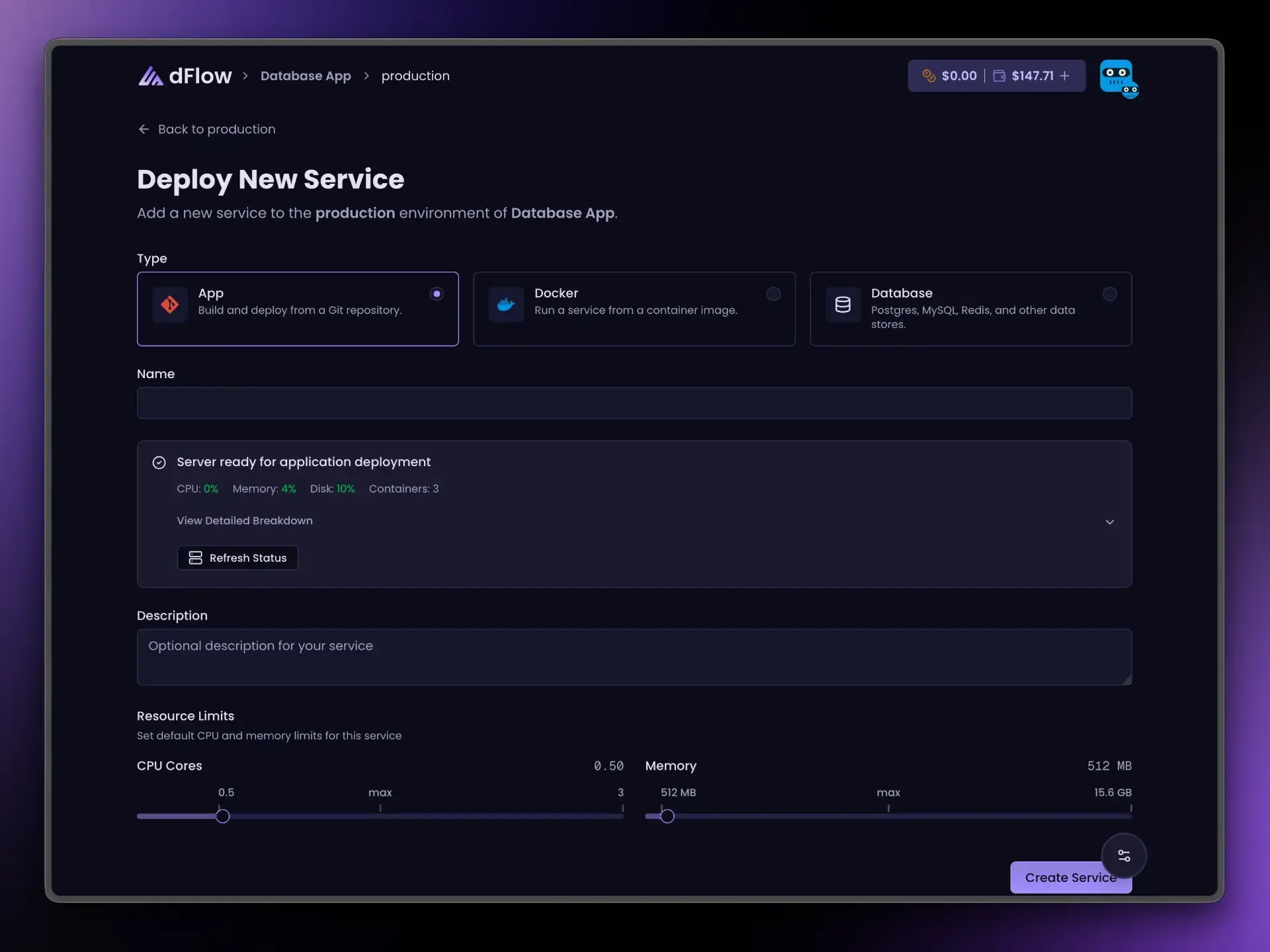
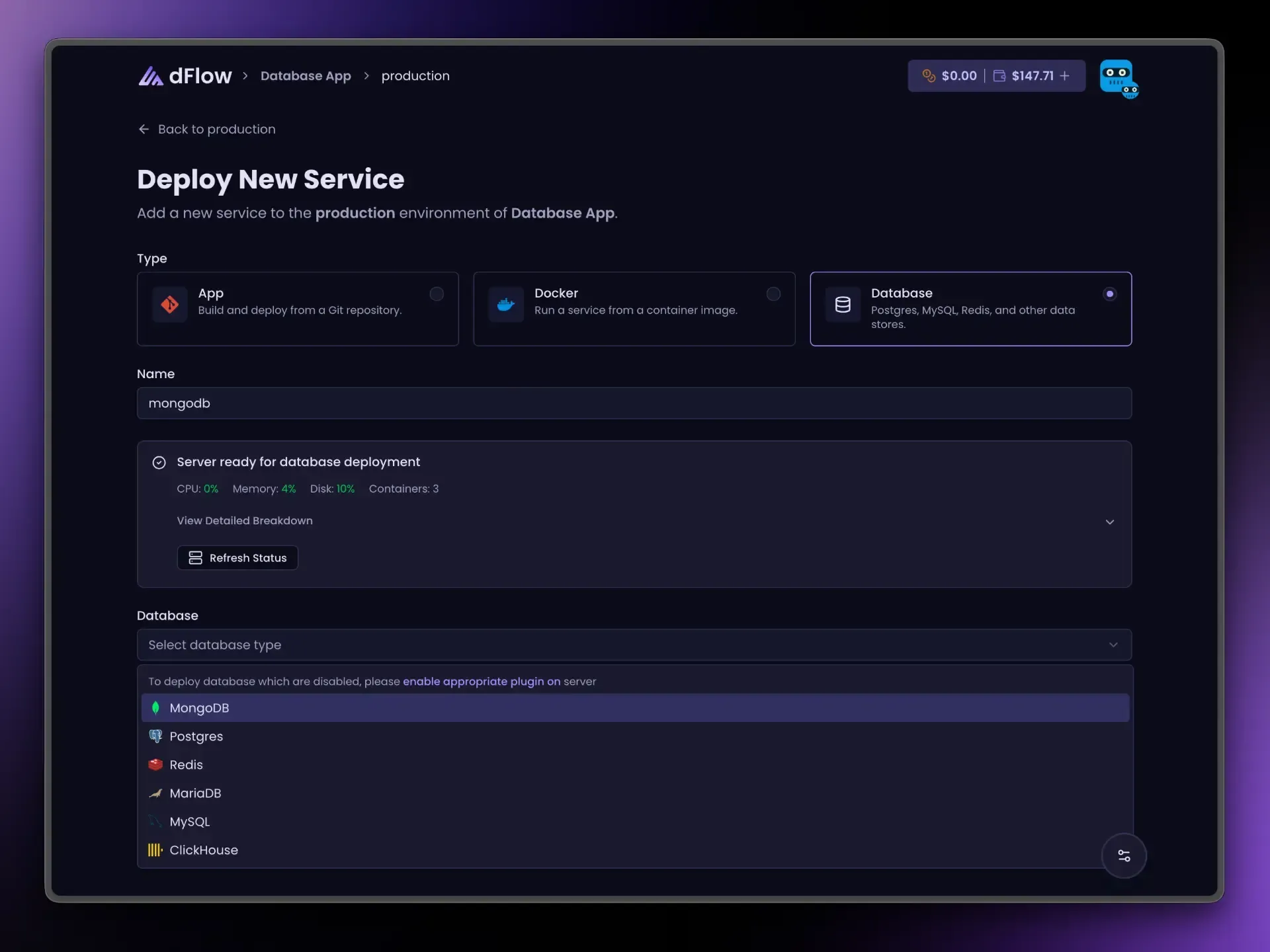
Choose Database, pick an engine (for example Postgres or MySQL), enter a service name you will recognize in reference variables, then click Create Service.
Open the new service from the services list. On Overview, click Deploy and wait until the deployment succeeds.
After a successful deploy, Overview shows Internal credentials (connection URL and fields). Public credentials appear only if you use Expose (see below). Until then, Create Service has only registered the service in dFlow—Deploy is what actually provisions the database and writes those credentials.
For a focused walkthrough with checkpoints, see Create a database service.
Engines you can choose in the dashboard
If you need another engine or a custom image, add a Docker service instead: you supply the image, ports, volumes, and environment variables yourself.
Connecting apps: internal credentials (default)
Internal credentials are the values on the database Overview after a successful deploy. Use them for:
Any app or Docker service in the same environment.
Workers or sidecars deployed in that environment.
Traffic stays on the internal network path dFlow sets up for that environment. You should not need the public internet for normal app-to-database traffic.
For security and maintainability, prefer reference variables instead of pasting the URL or password by hand. See Database credentials and connections and the engine-specific guides below.
Reference variables (recommended)
On an app or Docker service, open the Variables tab. Next to a value field, open the { } Reference variables menu (braces icon). Pick your database service and the field you need.
The dashboard inserts tokens in this shape:
{{ your-service-name.ENGINE_SUFFIX }} Here ENGINE_SUFFIX is built from the database type in uppercase, for example POSTGRES_URI, MYSQL_URI, MONGO_URI, MARIADB_URI, REDIS_URI, CLICKHOUSE_URI. The exact list for your engine appears in that engine’s guide.
Public options such as POSTGRES_PUBLIC_URI appear in the same menu only after the database is deployed and exposed; until then they stay disabled.
Expose and Unexpose (public access)
Use Expose when something outside the environment must connect—for example a BI tool on your laptop, a CI job, or a partner system that cannot run inside dFlow.
Most engines use one public port for the primary client protocol.
MongoDB and ClickHouse may use more than one public port behind the scenes. You still use a single Expose / Unexpose control; Overview shows the main public URL/host/port for typical clients.
Unexpose turns public access off. If the database is exposed, you must Unexpose before Stop; the UI enforces this.
Before you deploy
The create flow may show a resource check (CPU, memory, disk). Treat it as guidance: if the environment is already tight on resources, plan before adding large databases.
Database services do not use the CPU/memory sliders shown for App and Docker services; those sliders apply to application containers, not to managed database plugins in this flow.
Dashboard: tabs and actions for database services
A database service shows only the tabs that apply:
Overview — Status, internal (and optional public) credentials, primary actions.
Logs — Streamed output from the server.
Deployments — History of provisioning runs with status and logs.
Backups — Internal backup and restore (see Backups and restore).
Settings — Project switch (where applicable) and Delete service in the danger zone.
You do not get Variables, Scaling, Domains, Volumes, or Proxy on the database service itself. To pass connection settings into an app, use that app (or Docker service) Variables tab and reference variables.
Deploy, Expose / Unexpose, Restart, and Stop appear from the header on Overview, Logs, Deployments, and Settings (the Backups tab focuses on backup actions).
What each action does
Deploy — Runs initial provisioning. Required before credentials appear. Hidden after one successful completion (use Restart / Stop / Expose for later changes—not repeated Deploy).
Expose / Unexpose — After a successful deploy, opens or closes public access. Labels may show Exposing or Un-exposing while the job runs.
Restart — Restarts the database on the server. Requires a prior successful deploy.
Stop — Stops the database. Blocked while the database is exposed; Unexpose first.
Templates
Templates can include databases together with applications. Use Add New → Deploy from template when you want a packaged starting point. The same rules apply: deploy databases, use internal credentials or reference variables, and Expose only when required.
Logs, deployments, and backups
Use Deployments and Logs to confirm provisioning succeeded and to debug failures.
Use Backups for internal or external (S3-compatible) dumps, scheduled tiers, restore, and delete. See Backups and restore for current behavior.
If a tab or action is missing, your workspace, plan, or hosting mode may not expose it yet.
Per-engine guides
Each guide uses the same structure: when to choose the engine, how to create and deploy it, what appears on Overview, reference variable names, Expose behavior, and day-to-day actions.
Summary
Add databases with Applications → Environment → Add New → Add service → Database, then Deploy once until it succeeds.
Prefer internal credentials or reference variables for apps on dFlow; use Expose only for external clients.
Database services have no Variables tab; configure apps via their own Variables and
{{ service.ENGINE_FIELD }}tokens.After the first successful deploy, Deploy is hidden; use Restart, Stop, and Expose / Unexpose as needed.