Create
Written By Charan
Last updated 3 months ago
Creating a template allows you to capture your infrastructure in a reusable and distributable format.
Creating a Template
By defining services, environment configuration, volumes, etc., you lay the foundation for others to deploy the same software stack with the click of a button.
If you publish your template to the marketplace, other users in dFlow can deploy it with one click.
Add a service by clicking the Add New button in the top right-hand corner
Select the service source (App or Docker Image)
Configure the service variables and settings
Once you've added your services, click Create Template
Configuring Services
Configuring services using the template composer is very similar to building a live project in the canvas.
Once you add a new service and select the source, you can configure the following to enable successful deploys for template users:
Environment tab
Add required Variables. Use reference variables where possible for a better quality template
Settings tab
Enable Public Networking with HTTP
Configure Builder
Add a volume
To add a volume to a service, right-click on the service, select Attach Volume, and specify the Volume mount path
Convert a Project Into a Template
You can also convert an existing project into a ready-made Template for other users.
From your project page, click on Convert as Template
Enter template name and description
Click on Create
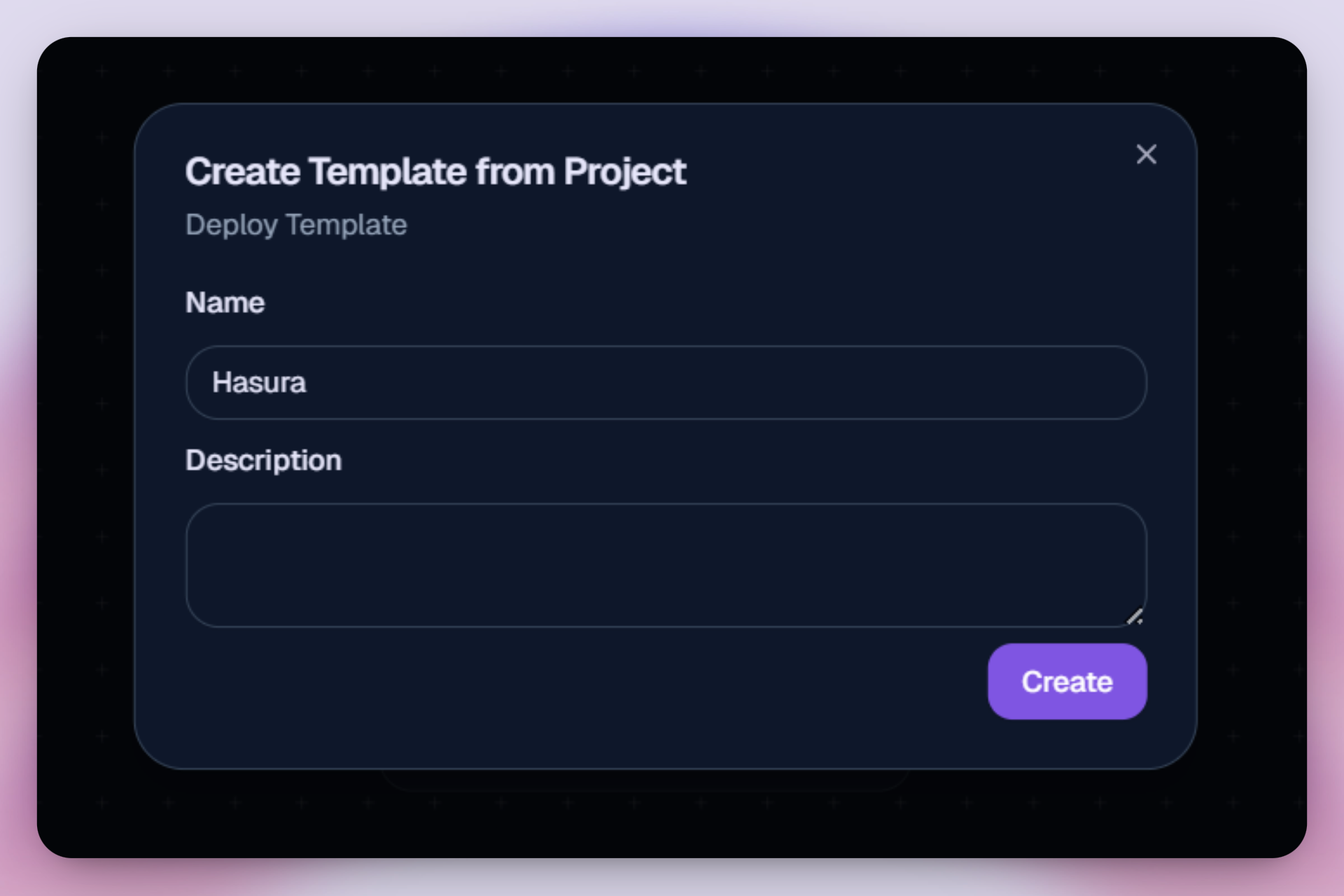
You will be taken to the template composer page, where you can update the settings and finalize the template creation.
Managing Templates
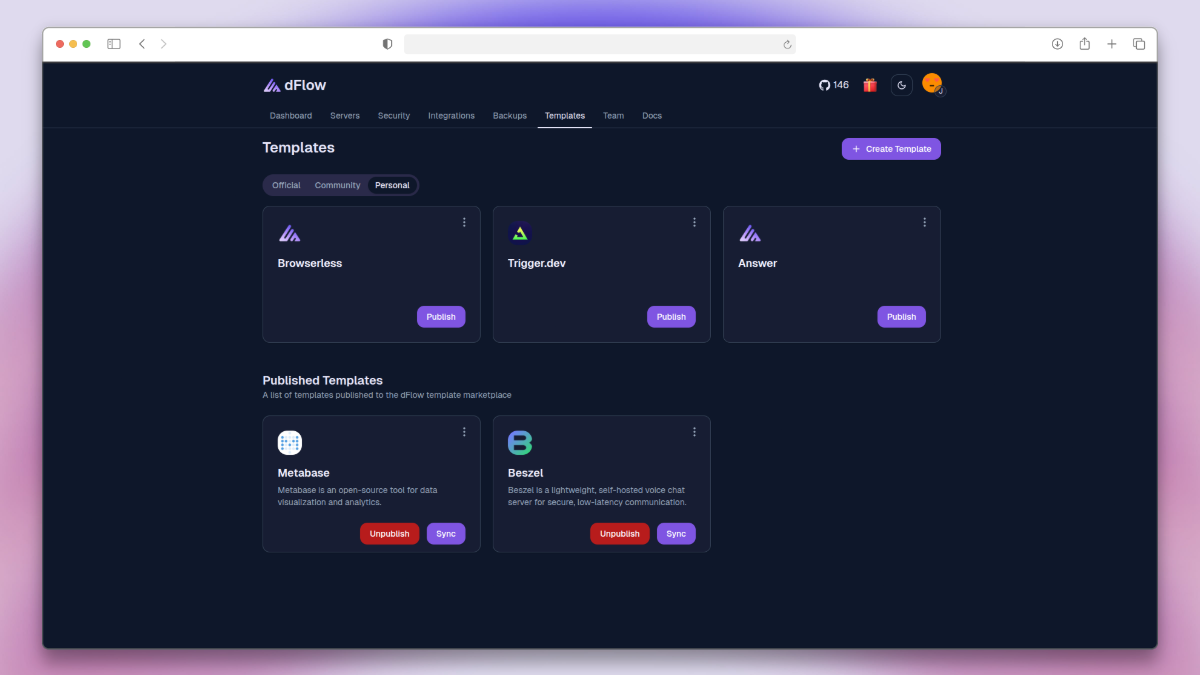
You can see all of your templates on your Template page. Templates are separated into Personal and Published templates.
You can edit, publish/unpublish and delete templates